
Nevquo Pixel › Resize an image in pixels
A 12-megapixel phone photo is far bigger than a web page, a blog or a chat needs. Cutting the number of pixels is the most effective way to make an image smaller, and this page does it in your browser and keeps the proportions.
How to resize an image
- Type the width and, if you like, the height in pixels. The default is a width of 1280.
- Add your images. They are all resized with the same numbers. Press Run again after changing the boxes.
- Download. The format of each file is kept, and the picture is re-saved at a high quality so resizing does not cost you visible detail.
How the width and height boxes work
The two boxes describe a frame, and your picture is scaled to fit inside it without being stretched. With only a width of 1280, a landscape 4000 by 3000 photo becomes 1280 by 960. With a width of 1280 and a height of 600, the same photo becomes 800 by 600, because height is the limiting side. Leave a box empty for no limit on that side.
This is a "fit inside" resize, not a crop and not a stretch. If you need an exact width and height with a different shape, such as a square thumbnail from a landscape photo, you will need to crop first in an editor.
Making pictures smaller, or bigger
By default, small images are not enlarged. A 500-pixel image with a width of 1280 stays at 500, because stretching a picture cannot add detail and only makes the file bigger. Tick Allow enlarging small images if you really need a larger canvas, for example for a form that insists on a minimum size.
Typical sizes: about 1200 to 1600 pixels wide for a blog photo, 2000 for a full-screen hero image, 1080 for most social posts, and 800 or less for email. Many sites show images much smaller than people assume; resize to what is actually displayed, doubled for sharp screens.
What else changes
Photo orientation is applied before resizing, so portrait pictures stay upright. Metadata is removed by default. Resizing also lowers the file size automatically, and if you need a precise number of kilobytes on top of that, Compress to a size in KB is the next step.
A real before and after
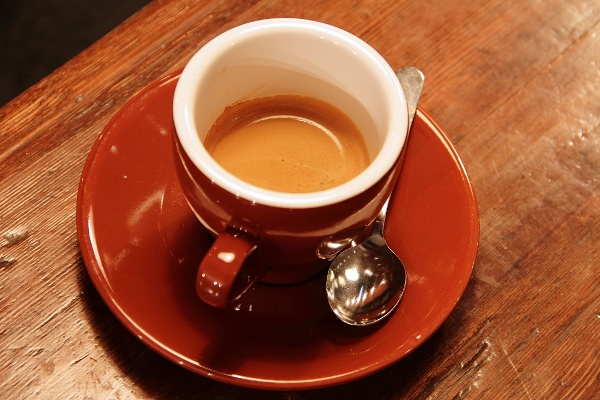
We resized two photographs with this page: one to a width of 256 pixels and one to 300 pixels. The pictures below are the first photo, before and after.
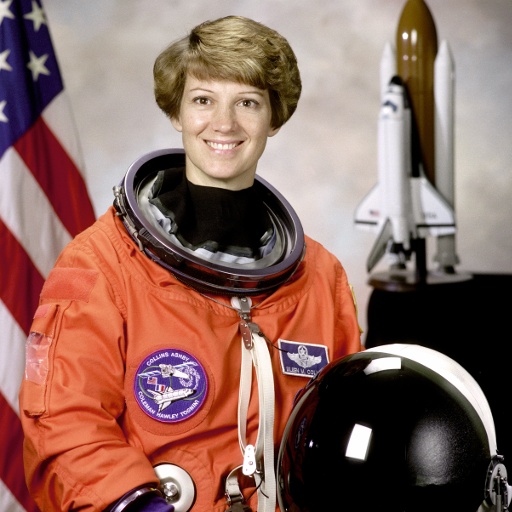

| File | Setting | Before | After | Saved | Pixels | Visual score |
|---|---|---|---|---|---|---|
| astronaut.jpg | width 256 | 97 KB JPEG | 12 KB JPEG | −88% | 512×512 → 256×256 | 99.3 |
| coffee.jpg | width 300 | 102 KB JPEG | 17 KB JPEG | −83% | 600×400 → 300×200 | 99.3 |
Test images: astronaut: NASA portrait of Eileen Collins (public domain); coffee: photo by Rachel Michetti (CC0). The photos come from the public-domain and CC0 images bundled with scikit-image, at their original size. Both were saved as JPEG at quality 95 for this test. Measured with the Nevquo Pixel engine, version 1.2.0, on 2026-10-10. Check it yourself: astronaut.jpg (original), coffee.jpg (original). Results (astronaut.jpg, coffee.jpg).
Frequently asked questions
Does resizing reduce quality?
Making an image smaller discards pixels by definition, but it is re-saved at high quality so the detail that remains is not degraded further.
Can I resize to an exact width and height?
The page fits the image inside the box without stretching. If the proportions of the box differ from your picture, one side will be smaller than the box.
Can I resize many images to the same size?
Yes, all images you add use the same numbers, and there is no limit on how many. Download them as a ZIP.
Does it work for PNG, WebP and HEIC?
Yes. PNG, JPEG and WebP keep their format. Formats browsers cannot save, such as HEIC, are saved as JPEG or PNG.
Is my image uploaded when I resize it?
No. The resizing happens in your browser.