
Nevquo Pixel › Convert to WebP
WebP is the easy modern upgrade for website images: smaller than JPEG and PNG, with transparency, and supported by every current major browser. This page converts your files on your own device and checks each one against the original.
How to convert an image to WebP
- Add your images. JPEG, PNG, HEIC, TIFF, BMP, AVIF, GIF and SVG files all work.
- Leave quality on Smart. The page looks for the lowest WebP quality that still passes the visual check for each image.
- Download. Files come back with a
.webpextension and the same base name. Download one by one or all in a ZIP.
Lossy or lossless WebP?
WebP can compress in two ways. The lossy way works like JPEG and suits photographs. The lossless way keeps every pixel and suits logos, screenshots and graphics with sharp edges. You do not have to pick: Smart mode tries what suits the picture and keeps the smaller result that passes the check. If you want an exact copy of every pixel, choose Lossless WebP.
Transparent PNGs convert without losing their transparency, which is one of the main reasons to prefer WebP over JPEG for logos and cut-out product photos.
Before you replace your images
WebP works in the current versions of Chrome, Edge, Firefox and Safari, so a normal website can use it directly. Check anything that is not a browser. Some older desktop programs, email clients and upload forms still refuse .webp files, and if you ever need the old format back, the WebP to JPG or PNG page does that.
Keep your originals. A lossy conversion cannot be undone, and WebP is meant for delivery, not for archiving the master copy of a photo.
Using WebP on a website
In HTML you can point an image tag straight at the new file. If you must support very old browsers, wrap the image in a picture element with the WebP as the first source and the original as the fallback. Remember to resize very large photos first; a 6000-pixel-wide image is too big for a web page in any format.
A real before and after
We converted a JPEG photograph and a PNG logo with transparency, using the settings you see on this page. The picture below is the photograph.

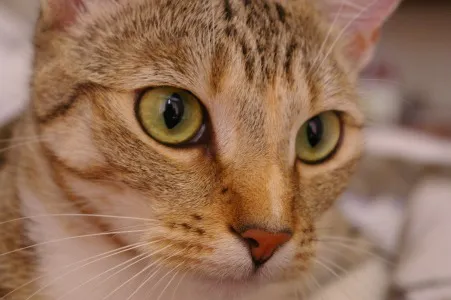
| File | Before | After | Saved | Visual score |
|---|---|---|---|---|
| chelsea.jpg | 38 KB JPEG | 17 KB WebP | −54% | 98.8 |
| logo-alpha.png | 7.9 KB PNG | 2.3 KB WebP | −71% | identical |
Test images: chelsea: photo by Stefan van der Walt (CC0). The photos come from the public-domain and CC0 images bundled with scikit-image, at their original size. The logo (logo-alpha) was drawn by us. The photo was saved as JPEG at quality 92 for this test. Measured with the Nevquo Pixel engine, version 1.2.0, on 2026-10-10. Check it yourself: chelsea.jpg (original), logo-alpha.png (original). Results (chelsea.webp, logo-alpha.webp).


Frequently asked questions
Is WebP smaller than JPEG?
Usually yes at a similar look, but not for every image. The table above shows the measured result on two real files. The page never hands you a larger file when the format change would not help.
Does WebP support transparency?
Yes, both lossy and lossless WebP support an alpha channel, so transparent PNGs keep their transparent areas.
Can I convert HEIC photos straight to WebP?
Yes. HEIC, TIFF and BMP files are read on your device and saved as WebP. If you need a JPG for compatibility instead, use the HEIC to JPG page.
What happens to animated GIFs?
Animated files are left unchanged and marked as such, so you do not lose the animation by accident.
Are my images uploaded to convert them?
No. The conversion runs inside your browser using code that is downloaded once, and your images never leave the device.