
Nevquo Pixel › BMP and TIFF to JPG or PNG
BMP and TIFF files are often enormous, because they store pixels with little or no compression. Converting them to JPG or PNG typically saves most of the space, and this page does it in your browser without uploading your scans or screenshots.
How to convert BMP or TIFF
- Choose JPG or PNG with the switch above the drop area. JPG is for photos, PNG is for exact copies and graphics.
- Add your BMP and TIFF files. Drop them or choose a folder.
- Download. File names stay the same with a new ending.
JPG or PNG for an old file?
Use JPG when the file is a photograph or a scan of a photograph. JPG discards fine detail that is hard to see, which is why files shrink so much. Use PNG when the file is a screenshot, a diagram, a signature on white or anything with text, because PNG keeps every pixel. Both formats open in every browser, word processor and phone.
BMP is a very simple format that stores pixels almost as is, which is why a modest picture can fill several megabytes. A lossless PNG of the same BMP is often a fraction of that size without changing a single pixel, so for graphics it is a clear improvement.
What to check about TIFF
TIFF is a container that can hold many kinds of data. The page reads standard single-image TIFF files, including those from scanners and many cameras. Multi-page documents, such as a scanned contract, are not a good fit: you get the picture, not the pages. Very unusual TIFF variants, for example some with special colour modes, may fail to open, and the row will say so instead of producing a wrong image. Keep the original TIFF if it is your archive copy.
Transparency in TIFF is kept when you choose PNG. When you choose JPG, transparent areas are filled with white, and you can change that colour in Settings.
After converting
JPG results are tuned to look the same as the original, so you can use them for the web, email or a document. If you need a specific size for an upload form, follow up with Compress to a size in KB.
A real before and after
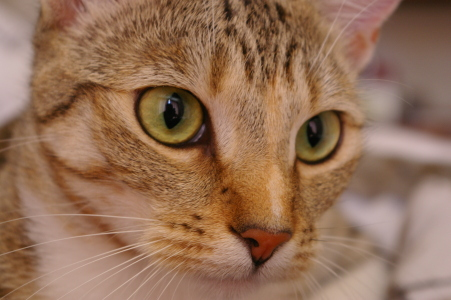
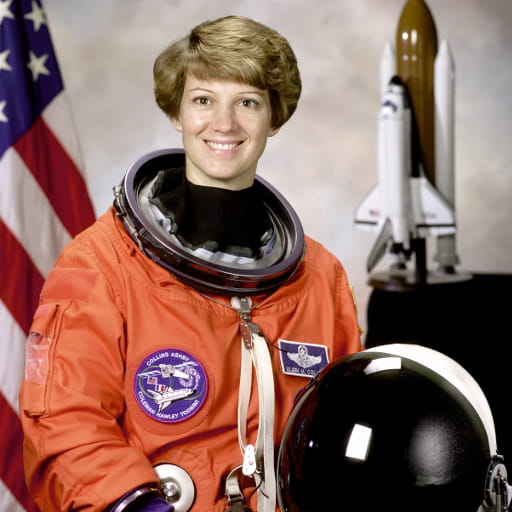
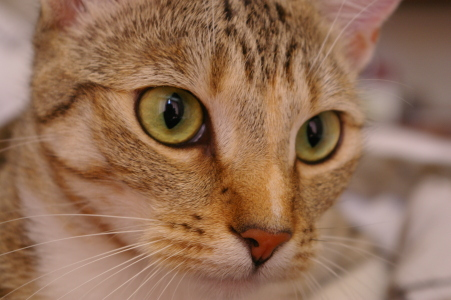
We converted a BMP photograph and a TIFF photograph to JPG, and the BMP once more to PNG, with the settings of this page. Browsers other than Safari do not display TIFF, so only the converted result is shown below when the original cannot be.

| File | Setting | Before | After | Saved | Visual score |
|---|---|---|---|---|---|
| chelsea.bmp | BMP to JPG | 397 KB BMP | 23 KB JPEG | −94% | 99.4 |
| astronaut.tiff | TIFF to JPG | 768 KB TIFF | 42 KB JPEG | −94% | 99.3 |
| chelsea.bmp | BMP to PNG | 397 KB BMP | 209 KB PNG | −47% | identical |
Test images: chelsea: photo by Stefan van der Walt (CC0); astronaut: NASA portrait of Eileen Collins (public domain). The photos come from the public-domain and CC0 images bundled with scikit-image, at their original size. The BMP and TIFF files were created from them for this test. Measured with the Nevquo Pixel engine, version 1.2.0, on 2026-10-10. Check it yourself: chelsea.bmp (original), astronaut.tiff (original). Results (chelsea.jpg, astronaut.jpg, chelsea.png).
Frequently asked questions
How much smaller will my files be?
A BMP or uncompressed TIFF typically shrinks a lot, as the table above shows for real files. Already-compressed TIFFs gain less.
Is the PNG conversion lossless?
Yes. PNG here keeps every pixel of the decoded original.
Can it handle multi-page TIFF?
Not as separate pages. For scanned documents with several pages, use a program that keeps pages together, such as a PDF tool.
Will colours stay the same?
The conversion keeps standard colour data. If your TIFF uses an unusual colour mode, check a result with the Compare button before relying on it.
Are my scans uploaded?
No. BMP and TIFF files are read and converted in your browser.