
Nevquo Pixel › Compress JPEG
A JPEG straight from a phone or camera is usually much bigger than a web page, email or form needs. This page re-compresses it with the MozJPEG encoder and stops at the lowest quality that still passes a visual check against your original.
How to compress a JPEG
- Add your photos. Drop files, paste from the clipboard or choose a folder.
- Keep Smart quality for the best balance. Pick Smaller files for web pages and chats where a tiny trade-off is fine.
- Check and download. Every result shows its visual score. Open Compare to inspect details at full zoom, then download.
Why not just set quality to 70?
Most JPEG tools ask you for a quality number, but the same number gives very different results on different pictures. A foggy landscape tolerates a low setting, while a photo of a brick wall or text on a sign shows damage much sooner. Nevquo Pixel works the other way round. You choose how close the result must be to the original, and the page searches for the lowest quality that meets it, separately for each photo.
That is why one image in a batch might shrink by 80 percent and another by 30 percent. Both are doing what you asked.
What is removed, and what is kept
By default the page removes metadata such as camera model, date and GPS location. That saves a little space and is better for privacy when you publish photos. The orientation is applied to the pixels first, so a photo taken in portrait mode still opens the right way up. If you want to keep metadata, change it in Settings.
If re-compressing would not make a file smaller, the page keeps the original picture data and only strips the metadata. You never get a bigger file than you put in.
Lossless option
Choose Lossless if you do not want any change to the picture. The page then rewrites the file without touching a single pixel, which only removes metadata and structural overhead. The savings are small but the image is bit-for-bit the same.
A real before and after
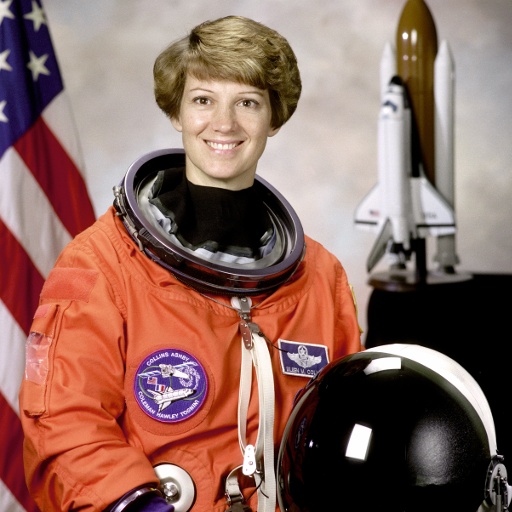
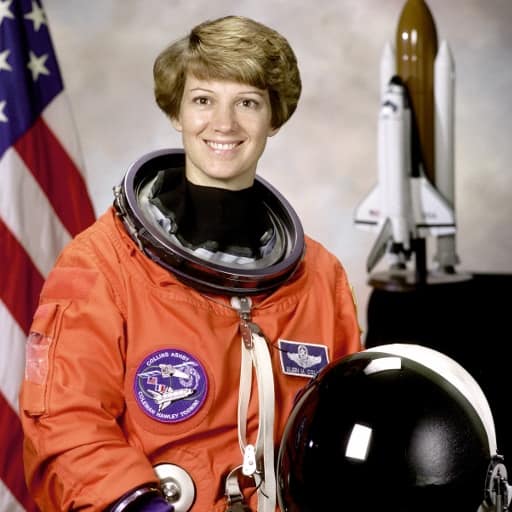
We compressed two photographs that were saved at high JPEG quality (95), the kind of file you get from an editor or a camera set to its best setting. Same default settings you get when you open this page. The picture below is the first photo.
| File | Before | After | Saved | Visual score |
|---|---|---|---|---|
| astronaut.jpg | 97 KB JPEG | 29 KB JPEG | −70% | 99.0 |
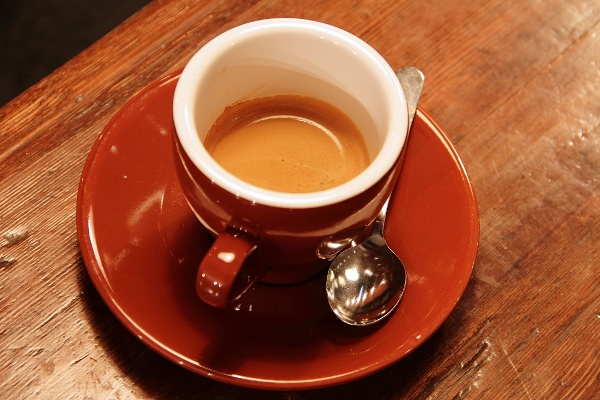
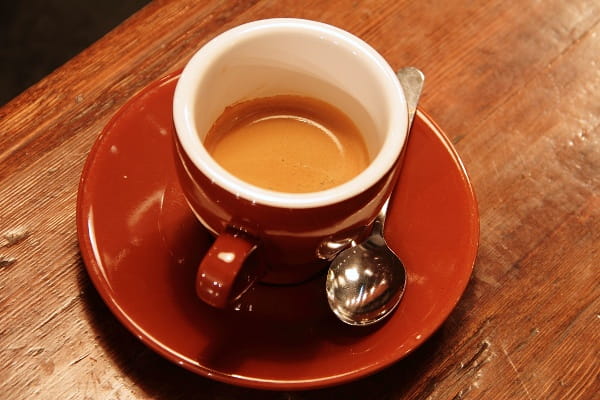
| coffee.jpg | 102 KB JPEG | 43 KB JPEG | −58% | 98.8 |
Test images: astronaut: NASA portrait of Eileen Collins (public domain); coffee: photo by Rachel Michetti (CC0). The photos come from the public-domain and CC0 images bundled with scikit-image, at their original size. Both were saved as JPEG at quality 95 for this test. Measured with the Nevquo Pixel engine, version 1.2.0, on 2026-10-10. Check it yourself: astronaut.jpg (original), coffee.jpg (original). Results (astronaut.jpg, coffee.jpg).
Frequently asked questions
How much smaller will my JPEG get?
It depends on the photo and how it was saved before. A file already saved at a low quality gains little; a high-quality export from a camera or editor can drop by half or more. The table above shows real measured numbers.
Will the quality visibly drop?
Smart mode is tuned so that normal viewing shows no difference. The visual score tells you how close each result is, and Compare lets you zoom in to check for yourself.
Does it keep my photo orientation?
Yes. Rotation is applied to the picture itself, so the file looks right everywhere even though the metadata is removed.
Can it compress many JPEGs at once?
Yes, there is no limit on how many. Drop a whole folder, then download everything as one ZIP that keeps the folder structure.
Is it safe for private photos?
The files never leave your device. Compression runs inside your browser tab and nothing is sent to a server.