
Nevquo Pixel › Compress a whole folder
Shrinking images one by one is tedious. Point this page at a folder, and all JPEG, PNG, WebP, AVIF, HEIC, TIFF, BMP and SVG files inside it, including those in subfolders, are processed in parallel on your own device.
How to compress a folder
- Choose a folder. Click Choose a folder, or drag a folder from your file manager onto the page.
- Wait for the batch. Several images are processed at the same time, depending on your device. The summary shows total savings as it goes.
- Download. Download everything as one ZIP with your folder structure, or in Chrome and Edge on a computer, save straight into a folder you pick.
The default keeps formats and names
A folder often belongs to a website or a document, with other files that refer to each image by name. For that reason this page keeps each file in its own format by default, so logo.png stays a PNG and photo.jpg stays a JPEG. If you do not have anything pointing at the names, you can switch to Smallest format for each. That lets every picture become the smallest of WebP, AVIF, JPEG or PNG that passes the visual check, and the extensions change to match.
Files that are not images are skipped, and animated files are left untouched so animations survive.
Folder access in different browsers
Chrome and Edge on a computer can open a folder directly. Other browsers, such as Safari and Firefox, use their built-in folder upload, which still stays on your device despite the word. Browsers do not allow some system folders, such as Documents or Desktop themselves, to be opened this way. If you see a message about that, choose a folder inside it or drag the folder onto the page instead.
In Chrome and Edge there is a third option: Auto-optimize a folder. Keep the tab open and new images that appear in a watched folder are compressed into an optimized subfolder. Your originals are never touched.
Tips for big batches
Large batches use memory. On a phone or an older laptop, do a few hundred images at a time. Resize huge photos first with Resize an image in pixels, since a 50-megapixel file takes much longer than an ordinary one. Keep the originals until you have looked at a few results with Compare.
A real before and after
We ran a small project folder through this page: four photographs and two graphics in subfolders, with the default settings. The picture below is the first file.


| File | Before | After | Saved | Visual score |
|---|---|---|---|---|
| astronaut.jpg | 97 KB JPEG | 29 KB JPEG | −70% | 99.0 |
| coffee.jpg | 102 KB JPEG | 43 KB JPEG | −58% | 98.8 |
| chelsea.jpg | 38 KB JPEG | 17 KB JPEG | −55% | 98.9 |
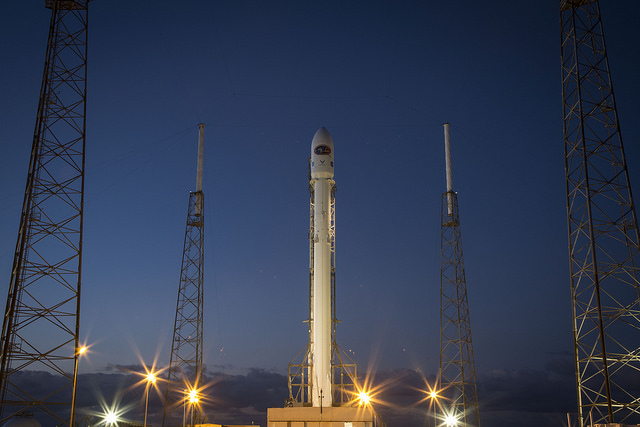
| rocket.png | 305 KB PNG | 286 KB PNG | −6% | identical |
| ui-screenshot.png | 93 KB PNG | 9.1 KB PNG | −90% | 100.0 |
| logo-alpha.png | 7.9 KB PNG | 3.2 KB PNG | −60% | 100.0 |
| Total (6 files) | 644 KB | 388 KB | −40% |
Test images: astronaut: NASA portrait of Eileen Collins (public domain); coffee: photo by Rachel Michetti (CC0); chelsea: photo by Stefan van der Walt (CC0); rocket: SpaceX photo of a Falcon 9 launch carrying DSCOVR (released into the public domain). The photos come from the public-domain and CC0 images bundled with scikit-image, at their original size. The ui-screenshot and logo-alpha files were drawn by us. Measured with the Nevquo Pixel engine, version 1.2.0, on 2026-10-10. Check it yourself: sample-folder.zip (the six originals in two subfolders). Results (astronaut.jpg, coffee.jpg, chelsea.jpg, rocket.png, ui-screenshot.png, logo-alpha.png).



Frequently asked questions
Does it keep my subfolders?
Yes. The ZIP and the Save to folder option use the same folder structure as the original.
Will file names change?
Not with the default setting. Names and formats stay the same. If you switch to Smallest format for each, only the extensions change.
How many images can I do at once?
There is no limit on the count. Practical limits are the memory and speed of your device.
Will my originals be overwritten?
No. The page never changes your files; it gives you new copies as a download or in a folder you choose.
Is anything uploaded?
No. A folder of images is processed entirely in your browser.